
We’ve all been there. You sit down to watch something or finish some work, and the internet is just… gone. No warning, no reason. If you’re a Mediacom customer, the first thing you want to know is — is Mediacom down in my area, or is it just me?
The good news is that finding the answer doesn’t take long. There are a few easy ways to check, and most of the time, you can sort out the problem yourself without calling anyone. This guide walks you through everything — how to check for outages, what usually causes them, how to fix things on your end, and what to do if the problem goes on too long.
What Is Mediacom, and Who Does It Serve?
Mediacom has been around since 1995. It serves about 1.3 million customers across 22 states, mostly in the Midwest and South — places like Iowa, Illinois, Mississippi, Alabama, and Florida. It’s actually the biggest internet provider in Iowa and the second biggest in Illinois.
What makes Mediacom a little different from providers like Comcast or AT&T is that it focuses on smaller towns and rural areas that bigger companies tend to skip. It uses a fiber-powered cable network to deliver internet, TV, and home phone under its Xtream brand. The service works well most of the time, but like any network, it can go down — especially during bad weather.
Is Mediacom Down in My Area Right Now? – How to Check!
1. Use the Mediacom MobileCare App
This is the quickest official way to check. Download the MobileCare app on your phone, log in with your Mediacom account, and look at the outage map. It shows any active problems in your area in real time. You can also turn on notifications so your phone alerts you once service comes back.
2. Log Into Your Mediacom Account Online
Go to mediacomcable.com and sign in. Head to the service status section. This will show you if there’s a known outage near you — and it will also tell you if your account has a billing issue that might be causing the problem, which is a separate thing entirely.
3. Check Third-Party Outage Sites
A few websites collect outage reports from users and show you what’s happening in real time. Downdetector is the most popular one — it shows a map of reported problems and a chart so you can see if reports are higher than normal. Outage.report and StatusGator also track Mediacom and can be useful when Mediacom’s own app isn’t loading.
4. Run a Speed Test
Open a speed test site and run a quick test. If it won’t even load, you’re likely in a full outage. If it loads but your speed is much lower than what your plan promises, it might just be congestion or a partial issue — not a complete outage.
5. Check Your Router’s Lights
Your modem or router lights tell you a lot. A solid white light means things are fine. A blinking white light means it’s still connecting. A red light means there’s no internet connection. And if there are no lights at all — check if the device is plugged in properly or if your power is out.
Never Miss: How To Treat Swollen Gums In Back Of Mouth?
What Causes Mediacom Outages?
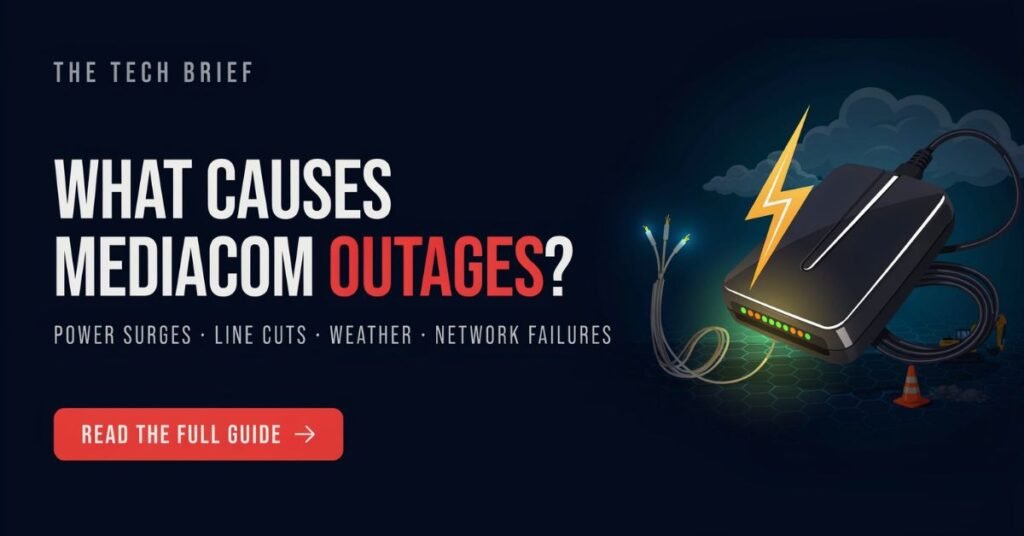
Most Mediacom outages happen because of one of these reasons:
Bad weather is the biggest one — about 43% of all outages are weather-related. Storms, ice, and strong winds can damage cables and equipment, especially in rural areas where Mediacom operates.
Fiber cuts come next. If a construction crew accidentally digs into a cable or a tree falls on a line, it can knock out internet for a large area all at once. Equipment failures — at your home or at Mediacom’s local network hub — are also common. Sometimes it’s just a modem that stops working, and sometimes it’s bigger hardware deeper in the network.
Scheduled maintenance is another reason. Mediacom sometimes takes parts of its network offline to do upgrades or repairs. Ideally they let you know ahead of time, but that doesn’t always happen. And during busy evening hours, the network can get congested — this isn’t really an outage, but it can feel like one when speeds drop noticeably.
Is It a Mediacom Outage or a Problem With Your Equipment?
Before you call support, it’s worth figuring out where the problem actually is. If your neighbors are having the same issue, it’s almost certainly Mediacom’s problem. A quick text to someone nearby can confirm this in seconds.
If it’s just your home, try these quick checks. Connect a different device — your phone or another laptop — and see if that one can get online. If it can’t either, the issue is probably your modem or router, not that one device. Then try plugging directly into the modem with an ethernet cable, skipping Wi-Fi. If that works, your router is the issue. If that doesn’t work either, the problem is your modem or the signal coming into your home.
Also check that all cables are properly connected. A loose cable at the back of your modem is a surprisingly common issue. Restart both devices by unplugging them, waiting 30 seconds, and plugging the modem back in first.
Give it two or three minutes before testing again. And just to be sure, log into your Mediacom account and confirm your bill is up to date — a missed payment can cut off your service in a way that looks just like an outage.
How to Fix It Yourself – Simple Steps!
Start with a modem and router restart. Unplug both, wait a full 60 seconds, then plug the modem in first. Wait until it fully connects before turning on the router. This one step fixes more problems than most people expect.
If that doesn’t work, check every cable. Follow the coaxial cable from your modem to the wall and make sure it’s tight at both ends. Check the ethernet cable between your modem and router too — sometimes these work loose without anyone noticing. Damaged or bent cables can cause issues that come and go, which makes them easy to miss.
If the restart and cable check both fail, try connecting a laptop directly to the modem with an ethernet cable. If it works, your router needs to be reset. If it still doesn’t work, call Mediacom — the problem is either with your modem or with the service coming into your home.
How to Contact Mediacom Support?
If you need to reach Mediacom, here are your options:
- Phone (residential): 1-855-633-4226
- Phone (business): 888-298-6080
- Text: 66554 — a rep will help you over SMS
- Live chat: mediacomcable.com
- MobileCare app: report outage and track status
- Twitter/X: @MediacomSupport
During a big outage, phone lines get busy fast. Texting 66554 or using live chat is often much faster. When you reach someone, have your account number and your full address ready — even one wrong number in your address can send repair crews to the wrong place.
How Long Do Outages Usually Last?
Small outages typically resolve in one to four hours. Bigger ones — like a cut fiber line or major storm damage — can take 12 to 24 hours. The worst recorded Mediacom outage lasted a full day and affected over a million people in Illinois.
When you call support, ask for an ETR (Estimated Time of Repair). It’s not always exact, but it gives you a rough idea of when things should be back to normal.
Can You Get a Refund?
Mediacom doesn’t automatically give refunds for outages. But if your service was down for a while, you can call and ask for a bill credit. The key is to document things — write down when the outage started and ended, and keep any case numbers from your support calls.
If you’re a new customer, Mediacom’s 90-Day Satisfaction Guarantee lets you cancel and get a refund on your monthly charges within the first 90 days. Setup and activation fees are not included in that.
For most people, a polite request for a bill credit is all it takes. Keep a record and be specific about how long you were without service.
Also check: NSFW AI Chatbot No Message Limit – The Complete 2026 Guide
How to Avoid Future Problems?
A few simple things can help reduce the impact of outages. First, consider buying your own modem instead of renting from Mediacom. A newer, owned modem usually performs better and gives you more control.
Get a UPS (Uninterruptible Power Supply) — it’s basically a battery backup for your modem and router. During short power cuts (which often happen in the same storms that knock out Mediacom), your internet stays on.
Turn on outage alerts in the MobileCare app so you know right away when something’s wrong. And if you work from home and can’t afford downtime, a backup mobile hotspot is worth having for emergencies.
Is Mediacom Internet Reliable? (Honest Overview)

Mediacom internet is fairly reliable for everyday use, but it really depends on your area. In some locations, users get stable speeds and smooth performance. In others, there can be slowdowns during peak hours or occasional outages.
For normal tasks like browsing, streaming, and work, it usually performs fine. However, if you often notice issues or keep searching “is mediacom down in my area,” then reliability might not be strong in your location.
Overall, it’s a decent option—but not the most consistent everywhere.
Alternatives If Mediacom Is Frequently Down in Your Area
If Mediacom keeps going down, it’s a good idea to explore other options available in your area.
Fiber internet is usually the best choice for speed and reliability. DSL can be slower but more stable for basic use. Wireless internet or a mobile hotspot can also help as a backup when your main connection fails.
Here’s a quick comparison:
| Option | Speed | Reliability | Best For |
| Fiber | Very Fast | Very High | Streaming, gaming, work |
| DSL | Moderate | Stable | Basic browsing, emails |
| Wireless | Varies | Medium | Backup or rural areas |
In the end, choose the option that gives you stable performance, not just high speed.
Frequently Asked Questions:
Q: Will Mediacom tell me when my internet will be fixed?
Yes. Call support and ask for the ETR (Estimated Time of Repair). It’s an estimate, so give it a little extra time — especially for big outages.
Q: Does Mediacom warn you about planned maintenance?
They try to, but notifications don’t always reach everyone. Checking the MobileCare app occasionally is the safest way to stay updated.
Q: Why is my Mediacom internet slow in the evenings?
Cable internet shares bandwidth among neighbors. When everyone is online at the same time — usually 7 to 10 PM — speeds can drop. This is congestion, not an outage. Upgrading your plan can help if it happens often.
Q: My modem looks fine but I still have no internet — why?
Sometimes the modem connects to the local network but the problem is further up the line. Your modem shows a normal status, but traffic can’t reach the internet. This is a partial outage. Contact Mediacom to confirm.
Q: Is Mediacom my only option in my area?
Maybe, maybe not. Check mediacomcable.com with your zip code, or use the FCC’s broadband map to see all providers available at your address.
Conclusion:
If Mediacom is down in your area, the fix is usually simple — check the app, restart your equipment, and report the issue if needed. Most outages are short and sorted within a few hours. If it drags on longer, you have every right to ask for a bill credit. Keep the contact options saved, stay calm, and you’ll be back online before you know it.
 Wild Rise
  Admin
Admin